
Industry Deep Dive: Healthcare
A clinic reception desk absorbs three completely different kinds of message on one line. One caller wants to know whether you validate parking. Another needs a follow-up appointment on Thursday. A third is describing chest pain.
A single chatbot treats all three the same way, and in healthcare that is not merely irritating. The design that works splits them apart first — and draws a hard line around what the automation is allowed to know.
Start with the data boundary
This comes first, because it constrains everything else and retrofitting it is painful.
The automation handles logistics. It does not handle clinical detail.
Your agents may collect a name, a contact number, a preferred date and time, and a broad visit type — "follow-up", "new patient", "vaccination". They must not solicit symptoms, medical history, diagnoses, medication lists or test results. That belongs in your patient record system or the consultation, not a WhatsApp thread. Every field you collect is also something you must retain, secure, disclose and eventually delete correctly.
Patients will volunteer clinical detail regardless. You cannot prevent that, but you can instruct your agents never to ask for it, never to act on it, and to escalate rather than engage when it appears.
On compliance claims
Whether a deployment satisfies HIPAA, UK GDPR or your own regulator's rules is a determination you and your advisers make about your configuration, your data-processing arrangements and your jurisdiction. No platform setting decides it for you. Establish four things before going live: where conversation data is stored and for how long; whether the contractual arrangements your regulator requires with any processor are in place; which staff can see patient conversations (roles are configured under Control Panel › User Permission, whose toggles include LIVE CHAT and its sub-permissions); and how patients are told automated messaging is in use.
The three-agent shape
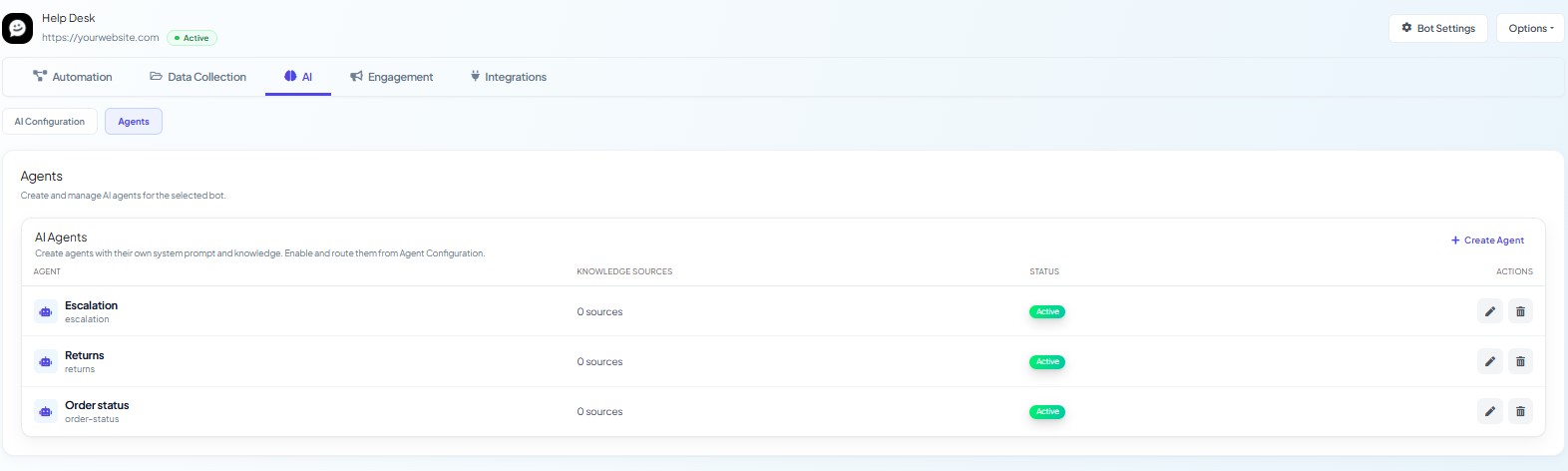
Build three narrow agents rather than one clinic bot. Each is created under Chatbot Manager › AI › Agents with + Create Agent.
Agent 1 — Information
Handles opening hours, location and parking, which insurers you accept, what services you offer, what to bring. Every answer comes from its Knowledge Set; nothing is improvised. The URL source points at your existing site pages rather than retyping them, File takes your patient leaflets, and a Google Sheet is the right home for anything reception changes without asking anyone — holiday hours, temporary closures, which clinician is at which site.
Its system prompt must carry an unambiguous prohibition: it is not a clinician, it does not interpret symptoms, it never offers medical advice, and anything suggesting urgency stops the answer and triggers escalation.
Agent 2 — Booking
Collects what is needed to make an appointment, then hands off to whatever holds your diary. It is also the agent that enrols the patient in the reminder, which is where any effect on no-shows comes from.
Agent 3 — Escalation
Deliberately capable of almost nothing. It applies a label, assigns the conversation to clinical staff, sends one short acknowledgement, and stops — no reassurance, no triage, no interpretation. An escalation agent that tries to be helpful is an escalation agent that gives medical advice.
Writing the system prompts
The SYSTEM PROMPT field is the agent's operating instruction, and vagueness in it shows up immediately in patient-facing behaviour. Structure each the same way: role in a sentence; knowledge usage — answer only from the connected knowledge, and say plainly when something is not covered; constraints written as prohibitions rather than preferences; conversation rules; then conditions and actions, condition first, action directly beneath.
Actions go into the prompt through the product's own autocomplete — type ## in the field and a list of the actions the agent can perform appears, then pick its parameter from the list. Use that list rather than copying action names out of an article, including this one.
For the Information agent, the emergency clause is the critical one:
If a patient describes severe pain, bleeding, difficulty breathing, or any language suggesting a medical emergency, reply only: "If this is a medical emergency, please call your local emergency number or attend your nearest emergency department immediately." Then apply the urgent label and assign the conversation to clinical staff. Do not answer the clinical question.
Put that in its own block near the top, above the helpful material — a constraint buried under FAQ instructions is one the agent weighs less.
Routing rules
With the agents saved, open Chatbot Manager › AI › AI Configuration and turn on the AI Agent toggle. That reveals Active Agents — select all three — and the Agent Routing table, added to with + Add Rule. Each rule pairs a description of the kind of message with the agent that should take it, and between them the rules decide who replies first and where chats can transfer. For a clinic:
Message signals | Agent |
|---|---|
hours, location, parking, insurance, services, what to bring, pricing | Information |
book, appointment, reschedule, cancel, availability, see a doctor | Booking |
pain, bleeding, urgent, emergency, severe, can't breathe, help now | Escalation |
These describe intent rather than list keywords. A patient who opens by asking about parking and then describes chest pain moves to the Escalation agent mid-conversation, because agents can transfer a conversation to the other agents listed in Active Agents. Write the escalation rule broadly and accept false positives: a parking question routed to a nurse costs a few seconds, the reverse error costs considerably more.
Configuration that matters clinically
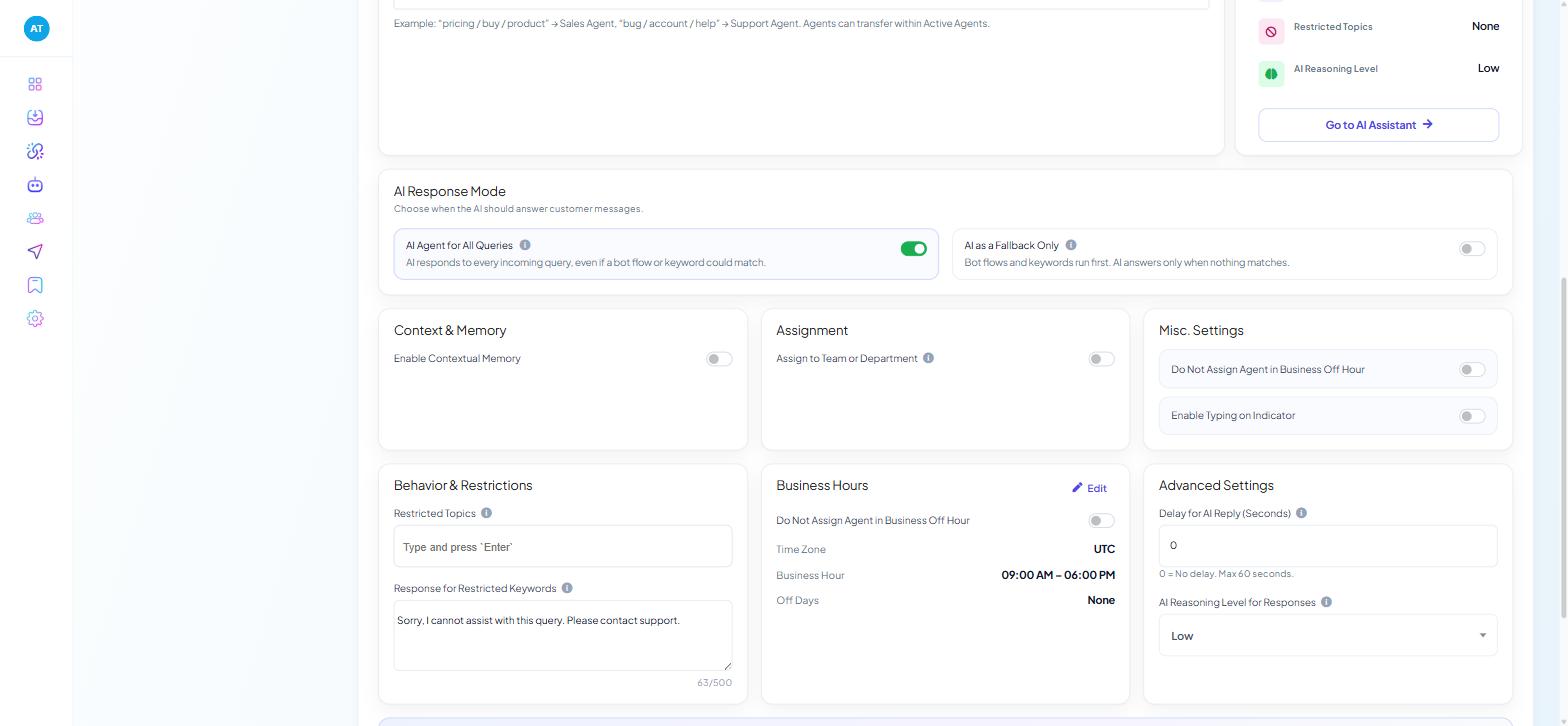
Three settings below the routing table earn their place in a clinic. Enable Contextual Memory stops a patient moved from Information to Booking being asked their name twice. AI as a Fallback Only (AI Response Mode) means bot flows and keywords run first, and the AI answers only when nothing matches. And Restricted Topics with Response for Restricted Keywords (Behavior & Restrictions) is a second line of defence that does not depend on the prompts being read correctly.
Appointments and reminders
This is where a clinic gets its measurable result, and the part to confirm in your own account before promising anything internally. An appointment capability exists: it appears in the permission model as a WhatsApp appointment-system permission under Control Panel › User Permission, and Connect Account › Connect Google leads to a Google Integration page described as "Connect and manage your Google accounts, sheets, and calendars", with a Calendar Access counter beside Google Accounts and Sheets Access.
Two things you can build meanwhile. A User Input Flow under Chatbot Manager › Data Collection gathers a fixed set of answers as one record — a series of questions asked inside the chat, with each answer stored where your automation can use it — and its panel includes Forward Data to Webhook and Sync Data to Google Sheets, so the request reaches your practice management system or a sheet reception works from. A Follow-up Sequence under Chatbot Manager › Automation then delivers the timed reminder; on WhatsApp anything sent more than 24 hours after the patient's last message needs an approved Message Template, so submit that early.
The reminder is the part worth measuring: a message on an app the patient already checks, with a way to reply and reschedule, gives a silent absence a chance to become a slot you can refill.
Handover and rollout
Escalated conversations arrive in the Shared Inbox, whose panel carries Customer Snapshot, Automation & Flow, Assigned Agent, Labels and Message Sequence. Whoever picks up should use Pause Bot and Pause AI first. Watch the Outside 24H Window indicator too: if a patient messaged yesterday and nobody replied, staff can send only an approved template.
Deploy the Information agent alone first, on one channel — lowest risk, largest share of calls, and it teaches you how patients phrase things before you write rules deciding who counts as urgent. Add Booking once you have confirmed how appointments are configured in your account, and Escalation last, tested with a colleague sending realistic distress language.
What to do next
Read Appointment Booking Automation for the booking mechanics in detail, then Industry Deep Dive: Financial Services & Agent Banking for the same architecture in a regulated commercial setting. If the channel is not connected yet, start with How to Connect WhatsApp to Scope Wiser: Complete Setup Guide.